No icon on network shortcuts on Windows 11 Pro

Issue:
Custom icons do not display correctly over network map drives.
The issues started when computers upgraded to Windows 10 and 11.

Explanation:
The issue is caused by Microsoft's attempt to cache the icon locally, but the icon is saved over the network. Thus, it is not caching correctly.

Please note:
The resolution will only apply to Windows 10 and 11 Pro.
Windows 10 and 11 we will develop a registry key fix.

Resolution:
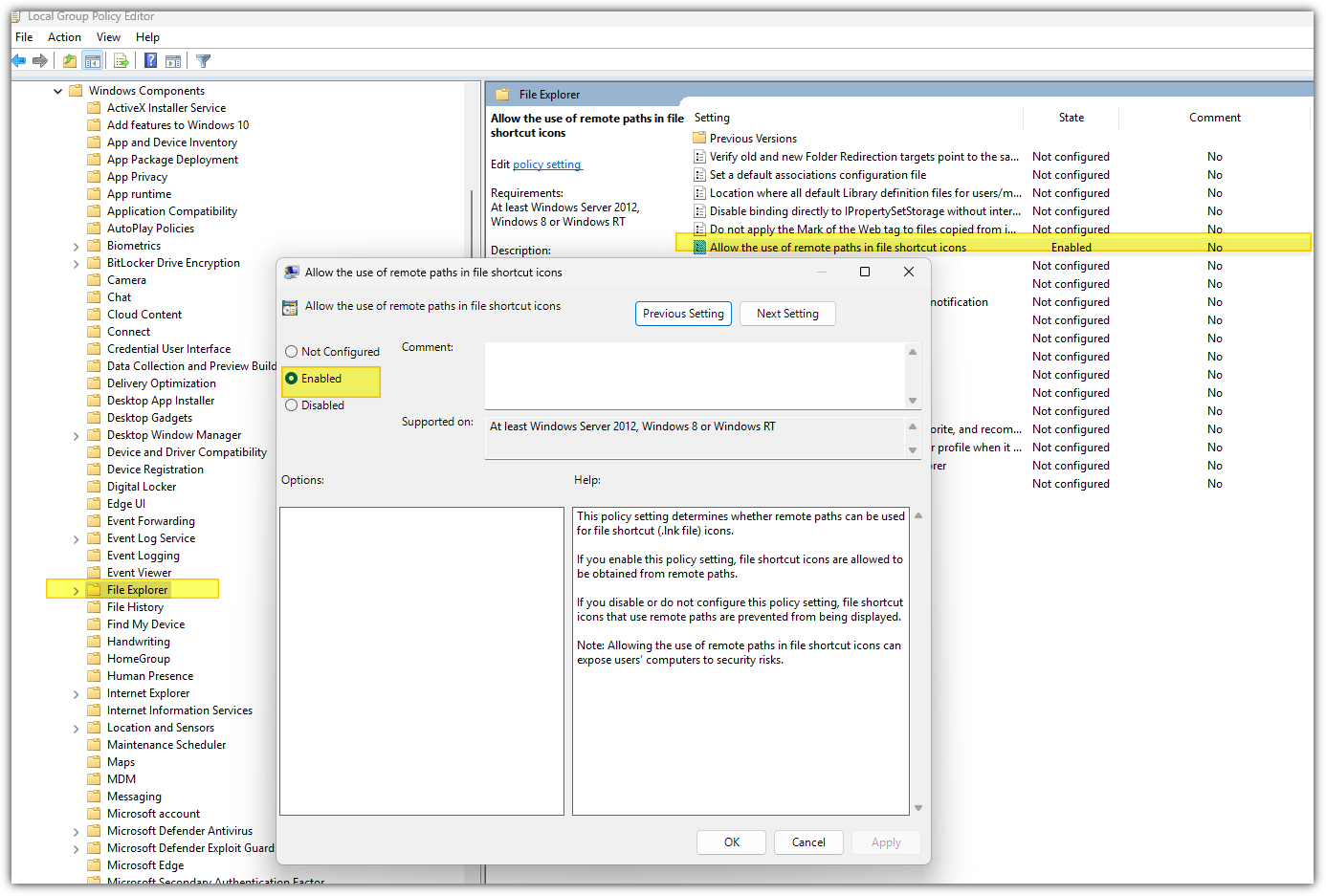
For Windows 11 Pro licenses you would need to enable the Global Object Policy (GPO) "Allow the use of remote paths in the file shortcut icons".
Search in the Start Menu for Edit group policy. (Screenshot 1)
To navigate to
Computer configuration --> Administrative Tools --> Windows Components --> File Explorer. (Screenshot 2)
The default behaviour is set to No, change this to Yes.
Make sure to press F5 when you navigate back to the Desktop, it will refresh the resource correctly.
You might need to open the application once for it to appear as well.
(Screenshot 1)
(Screenshot 2)
Resources:
Related Articles
Map drive | How to disable Open File security warning on Windows 10/11
Question: How can I disable Open File security warning on Windows 10? Change Local intranet settings Open Internet Options. We showed you how to do that in Solution 1, so be sure to check it for detailed instructions. When the Internet Properties ...System Overview and Recommendations
IQ/ERP Go is a capable system, but it is not fully optimized for modern operating environments. To ensure smooth operation, certain configurations and adjustments are required on both the server and client operating systems. Please note that IQ/ERP ...POS | Cash Sale | Freezes
Version: 2019.4.5.3 and above Issue: When you try to open Point of Sales -> Cash Sale, the system hangs. Remedial steps: It is most likely that the print spooler service is corrupt in Windows. Follow these instructions to clear your printer queue in ...Stock | Utilities | Stock Take | CipherLab Mobile Computer 8230 Wifi | Device configuration for IQ
Introduction This document provides guidance on setting up the CipherLab Mobile Computer 8230 for use during stock-taking procedures in the IQ system. For demonstration and testing purposes, version 2025.8.0.1 has been used. Important Notice From ...Opportunistic Locking could NOT be configured
Version: 2024.2.0.0 and higher Question: We have upgraded from IQ 2023.7.0.0 to version 2024.6.0.0 and we are encountering the error below. Opportunistic Locking could NOT be configured. Administrator privileges not available. Please ensure that you ...